How Gaze unlocks your Mac
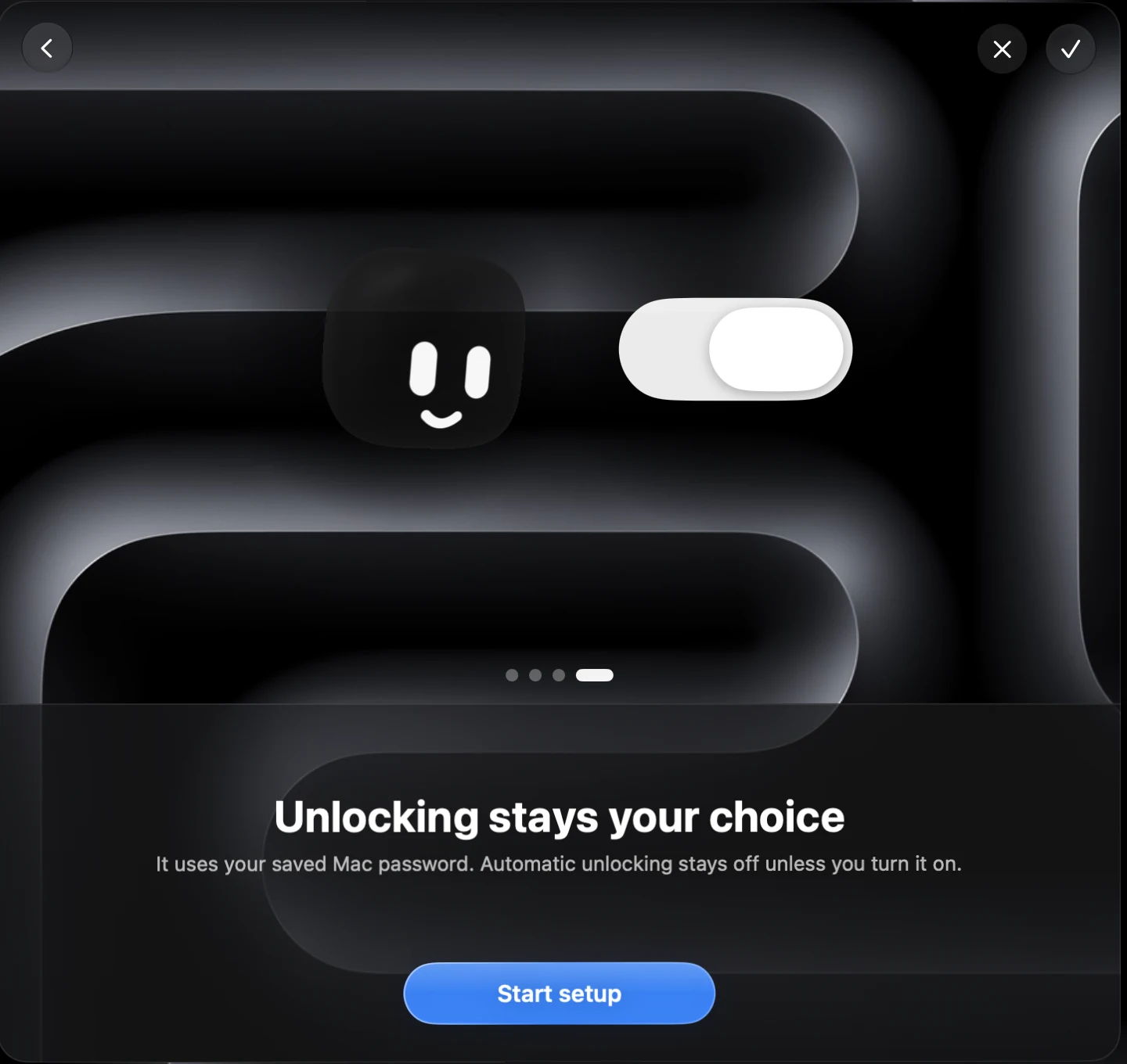
Set up recognition, practice the prompts, then choose whether to enable automatic unlocking. Face data never leaves this Mac, and automatic unlocking stays off unless you turn it on.
Step 1 of 4: Meet Gaze
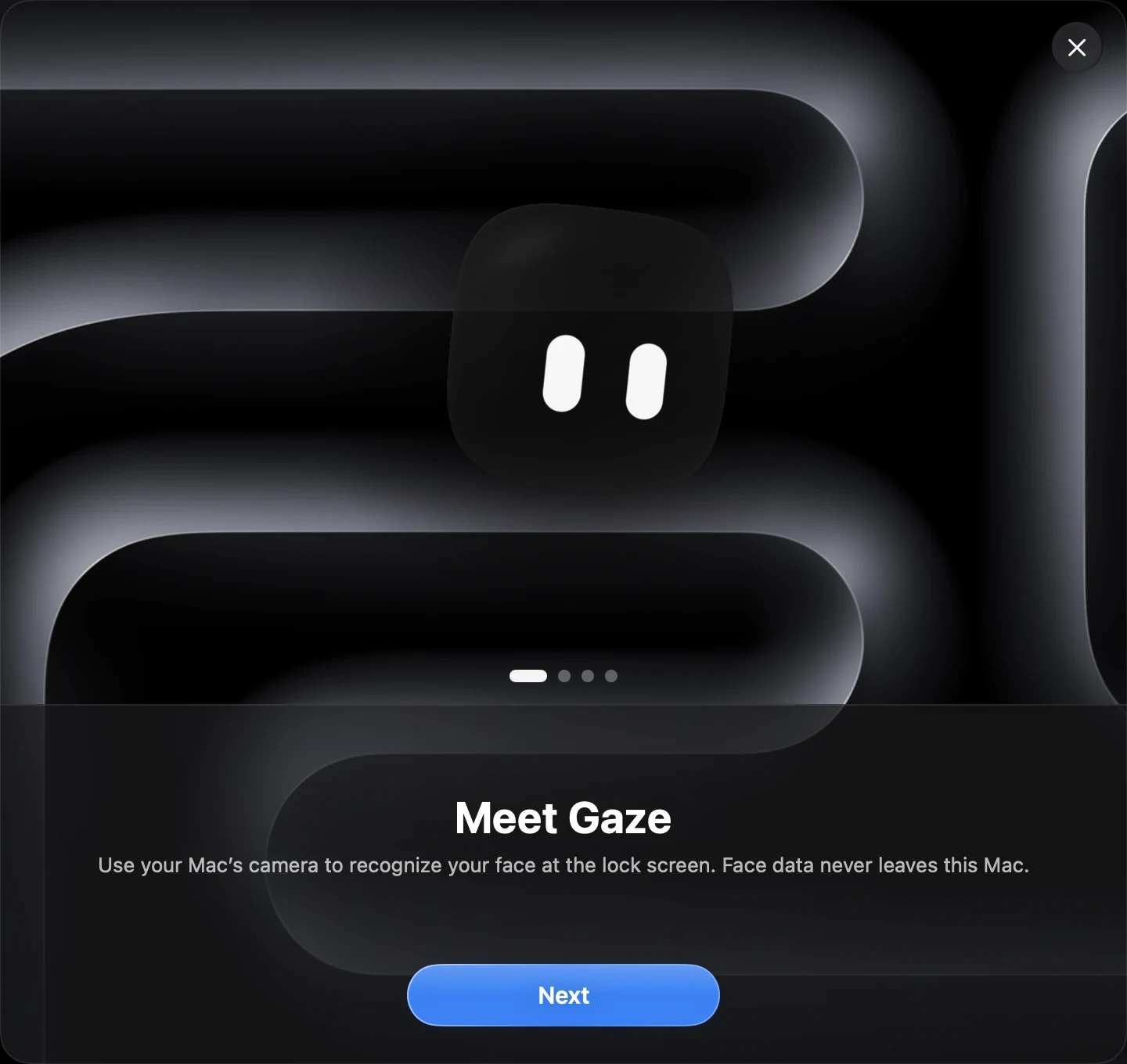
Meet Gaze
Learn what Gaze does, enroll your face, and choose whether to enable automatic unlocking. The separate movement guide keeps the camera off; a preview never unlocks anything.
Enroll your face
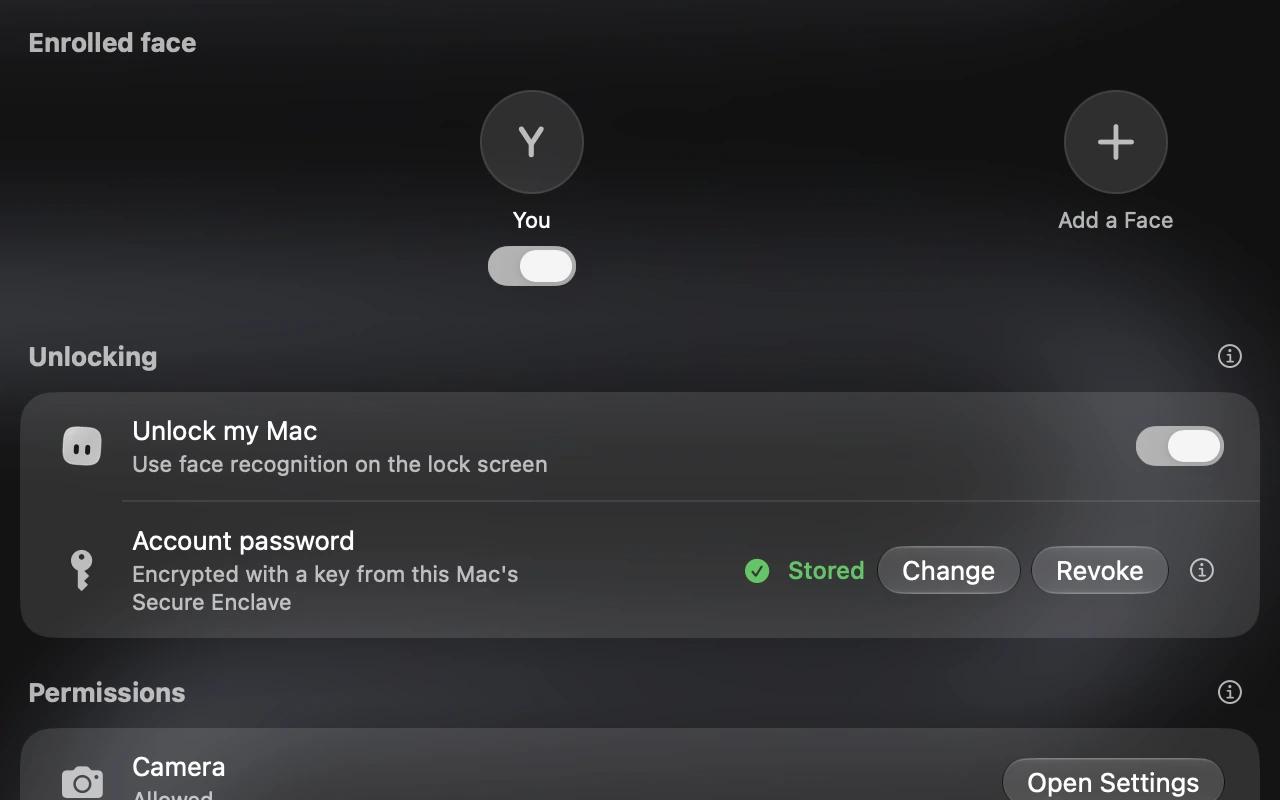
Enroll your face from a few angles, review camera access, then choose whether to enable automatic unlocking. You can finish skipped steps in Settings.
Follow the prompts
When automatic unlocking is enabled, Gaze opens the camera after your Mac locks. Follow the panel’s movement prompt, then return to your starting pose. Two movements are required by default.
Unlock your Mac
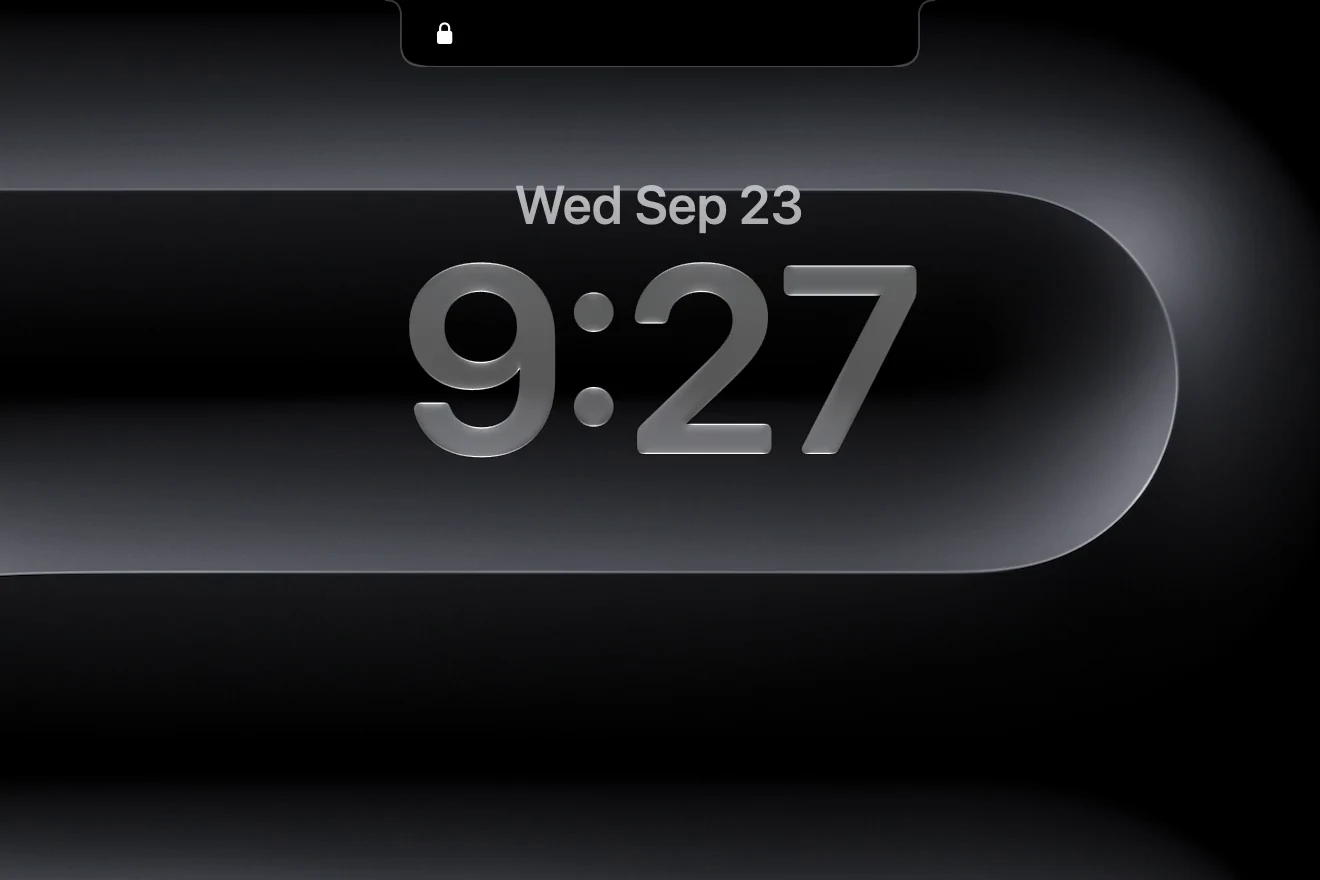
Once the configured recognition and movement checks pass, Gaze submits your saved Mac password and waits for macOS. Your password and Touch ID remain available. After a restart, sign in normally so Gaze can start.
Security limits
The camera you already have
Gaze uses your Mac’s ordinary camera. Macs do not have the infrared depth camera used by Apple’s Face ID.
Movement prompts aren’t a guarantee
Photos or replay can still fool a regular camera. Gaze’s movement prompts and spoof checks add hurdles, but do not provide Face ID’s depth sensing.
Your usual way in stays available
Your password and Touch ID continue to work. Gaze submits a saved password when its checks pass; it does not replace macOS authentication.
Gaze is independently made and is not affiliated with Apple.